

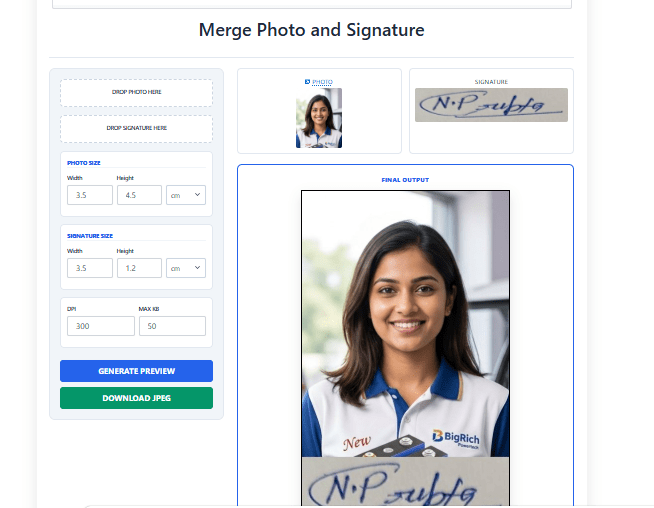
If you want to simply attach a photo and a signature into a single image, it is a common requirement for professional documents, job application portals and govt forms or online verification apps today.
Here are steps to follow this system’s uploaded data preparation and find the required result as you need from this tool (www.cscac.in).
Please check this…
1. Data Preparation: The rule is “Garbage In, Garbage Out.”
Before we merge the photo and signature, your source files first need to be clean. A high-quality merge starts with high-quality raw data.
Preparing the Photograph.
First, follow these steps in an easy way in three steps.
- Lighting: The photo has been taken in proper lighting. At that time, avoid harshness, darkness, or shadows on the face.
- Background: For the professional official documents, use a plain white or off-white background photo.
- File Format: Finally, save in the system as a high-resolution JPEG or PNG format.
Preparing the Signature.
After those photo steps, follow these steps in an easy way in three steps for signature.
- The pen color matters: Here, use a black-tip pen or a dark gel pen. Blue ink pens, mostly try to avoid.
- The White Paper: Use plain, lined white paper. Here we know that lines marked on the paper will create extra work for you later. It’s time taken.
- Digitized image: Scan it in 300 DPI mode or set it in a top-down photo in bright, natural light mode.
2. A: The Desktop Professional user (Adobe Photoshop)
If you need the most exact look where the signature fits to be naturally placed on the document or photo, Adobe Photoshop is the standard option for desktop users.
Fit the signature.
- Firstly, open your signature file as you saved it in the system.
- After that go to Select > Color Range. Mouse click the black ink of your signature.
- Then properly adjust the “Fuzziness” slider until the signature is crisp and the white background of the sign is ignored.
- After that, press Ctrl+J (Windows) to jump the selection to a new layer. You now have a transparent signature.
Step 2: Prepare in the CSC designer tool.
- Open your portrait photo in the system. Drop the photo and signature here.
- If the form requires a specific size (e.g., 2×2 inches), use the size tool set bar of photo and signature to set those dimensions and also DPI. See the preview and get the final exact result. (www.cscac.in).
Step 3: Merge the photo and signature.
- Here drag the transparent signature layer onto the photo image tab.
- After that, press Ctrl+T to transform. Hold the shift key to maintain proportions and resize the signature to fit the bottom corner in the tab.
- Pro Advance Tip: Change the layer blend mode to Multiply. This ensures any stray grey pixels from the paper disappear, leaving only the dark ink here.
Step 4: Export the merged photo and signature.
- Now go to File > Export > Export As in the system. Here, as per need, choose JPG (if the background is solid) or PNG (if you need to maintain transparency for other uses).
3.B: The “No-Software” (only Online Tools)
If you don’t want to install anything in the system, online editors like CSC Designer or Canva or directly visit www.cscac.in in the browser URL. Those are your best friends.
Using the CSC designer tool
- Open your portrait photo in the system. Drop the photo and signature here.
- If the form requires a specific size (e.g., 2×2 inches or KB), use the size tool set bar of the photo and signature to set those dimensions and also DPI. See the preview and get it final exact result. (www.cscac.in).
- Download: Save as a “JPG” at 100% quality without losing image quality.
4. C: The Mobile Power User (iOS & Android)
Sometimes you need to apply for a job on the go. You can do this entirely on your smartphone.
Use CSC Designer or visit www.cscac.in.
- Open the mobile browser: open the Google search engine and type “CSC designer.”
- Find www.cscac.in: click on it first. Drop down to see the merge photo and signature tools within the page.
- After that click, open the merge photo and signature display tool.
- Here, drop the prepared photo and signature image one by one.
- Use the size tool bar as you require KB and DPI dimensions in the tool. Set it properly. Click it preview button. Analyze and finally download a 100 % JPG or PNG image without losing quality.
6. Save: Export to your mobile gallery and use it.
- D: The Microsoft Office Workaround.
In this desktop system, believe it or not, Microsoft Word and PowerPoint are surprisingly good at this work.
- Open Ms PowerPoint: This is better than Ms Word for layering images.
- Insert Images: After that, insert both the photo and the signature-prepared image.
- Remove Background: Click the signature.
- Go to Picture Format > Remove Background.
- Mark areas to keep (the ink) and areas to remove (the white paper).
- Layering: In this section place the signature over the photo image.
- The “Merge”: Select both images (hold Ctrl and click both). Right-click the mouse and select “Save as Picture.” Choose JPEG. This merges them into one single file image without loss of quality.
6. Technical Requirements & Troubleshooting.
Standard file format and size.
Most official (govt. job) portals have strict limits of size (KB). Here, use this table as a checklist for perfect results:
| Feature | Requirement | How to Fix issue |
| File Size | Usually < 500 KB | Using an online “Image Compressor.” |
| Dimensions | Often 3.5cm x 4.5cm | Using the “Crop” tool to set aspect ratio. |
| Resolution | 300 DPI (dots per inch) | Ensure your initial scan isn’t “low resolution.” |
| Format | JPG, JPEG, PNG, or PDF | Save As the specific extension mode in the system. |
Common issues come here to get a perfect result.
- If The Signature looks “Grey”: Increase the Contrast on the signature image before merging. You want the blacks to be deep, and the whites should be bright.
- If The Photo is Blurry: This normally happens if you try to use “upscale” on a small thumbnail. Always start with the largest version of the photo you have in the system.
- The Box Effect: If your signature image has a white box around it that covers your shirt in the photo, you haven’t set the blend mode to Multiply or removed the background in a proper way.
7. Summary
- Clean: Firstly, be sure to remove the background from the signature.
- Scale: After that, resize the photo to the required dimensions in forms.
- Place: Adjust the position of the signature (usually bottom-right or centered at the bottom) as required.
- Flatten: Merge the layers so they cannot be moved.
- Compress: Ensure the final file size meets the portal’s requirement limit.
Note:- CSC designer tools prefer your data to be safe and secure. Not your data uploaded to any other server. It is fast and lightning-processing through a mobile or system browser. It’s easy to use this tool to merge photos and signatures in a second.