Compress Image to 200kb Online

The perfect guide to compress image to 200kb.

If you need to compress an image to 200KB, you can try different methods based on whether you are using Windows, Mac, Android, iPhone, or online tools. Here’s a straightforward step-by-step guide covering all the main simple methods.

  • Method 1: Firstly, you are to compress the image to 200KB using online tools (a simple method). This works well if you prefer not to need to install any software. –
  • Step 1: Now open your URL browser. Open Google Chrome, Edge, or any browser. –
  • Step 2: Now Open Image Compression Website Visit any of these trusted websites: TinyPNG, iLoveIMG, Compress JPEG, Squoosh
  • Step 3: Here, Upload Image Click the Upload button and select your image. 
  • Step 4: Here Adjust File Size Some websites let you: Set a custom size (enter 200 KB) Use a quality slider. Gradually reduce quality until the file size reaches 200KB or less.
  • Step 5: Download Click Download and save the compressed image. Done.
  • Method 2: Compress to 200KB in Windows Without Software You can use Paint, which is already installed on the PC.
  • Step 1: Using mouse right Click on  Image Click → Open with → msPaint –
  • Step 2: Perform Resize Image and  Click Resize → Choose Pixels Reduce the width (for example, from 4000px to 1200px) Keep “Maintain aspect ratio” checked. Click. OK –
  • Step 3: Save As JPEG format. Click: File → Save As → JPEG picture. JPEG format gives a smaller size. –
  • Step 4: Perfectly Check Size Right-click the image → Properties → Check if it is near 200KB. If it is still large: Repeat resizing and lower the pixel count further.
  • Method 3: Compress to 200KB Using Photoshop—
  • Step 1: now you open the image file → Open—
  • Step 2: Now Export for Web File → Export → Save for Web (Legacy) –
  • Step 3: Here, select JPEG. Choose: Format: JPEG Quality: Reduce (50–60%) You can see the file size preview in the bottom left. –
  • Step 4: Then adjust the quality decrease until the size shows near 200 KB.
  • Step 5: Finally, save professional-quality compression done.
  • Method 4: Compress to 200KB Using Squoosh (Advanced Control)
  • Go to Squoosh .
  • Steps: Now here is uploading the image. Then select the format: JPEG. Perform  Adjust the quality slider. Then resize the image width (if needed). Check the live file size preview. Download when it is near 200KB. Use the best for precise control.
  • Method 5: Compress to 200KB on Android Phone
  • Option 1: Right here: Using an app to download on your smartphone: Photo Compressor: Photo Image Size from Google Play.
  • Steps: Install the app. Open the image. Choose “Compress.” Set custom size → 200K B. Save.
    • Option 2: Without App (Online) Use: TinyPNG, cscdesigner, and iLoveIMG. Upload → Compress → Download.
  • Method 6: Compress to 200KB on an iPhone 
  • Option 1: Use an app. Download a compression app from the App Store.
  • Option 2: Use a website. Open Safari → Use TinyPNG , Squoosh, or www.cscac.in.
  • Important Tips to Reach Exactly 200KB If your image is very large (5MB+), consider the following steps: –

If we need to reduce the resolution of the image, for example, from 4000×3000 to 1200×900 or 1000×750. – Convert PNG to JPEG. PNG files are larger. JPEG files are smaller. – Lower Quality to 50–60%

Most images look fine even at 60%. Shows the final result.

Best Settings for 200KB Target Image Type Recommended Width Quality Passport Photo 600px 70% Website Image: 1200px, 60%; ID Card: 800px, 65% Document Scan 1000px 50% Common Problems & Solutions: Image Still Above 200KB – Reduce the width more. – Lower the quality. – Convert PNG to JPEG. If the image looks blurry, then increase the quality slightly. – Here, do not go below 40%.

  • Tips for Website Owners Since you run an electronics and MLM website, compressing images to 200KB helps:
  • Faster website speed.
  • Better Google ranking.
  • Lower hosting load.
  • Better user experience.

We even use WordPress plugins (like Smush).

Automatic compression tools.

Here is the finally quick formula. To compress an image to 200KB: Convert to JPEG. Resize the width between 800 and 1200 px. Set quality to 50–70%. Download and check the size.

Related question and answer.

Q1. How to Compress an Image to 200KB Without Losing Quality?

ANS:

1: Need to first Convert image to JPEG
PNG is bigger. Use JPEG format.

2: Resize image
Reduce width to 800–1200px.

3: Use Smart Compression Tool
Use:

  • Squoosh
  • TinyPNG
  • I love image.
  • Csc designer

4: Now here, adjust the quality slider.
Keep it between 60% and 75%.

Step 5: Download when size is near about 200K. B.

Tip: The file format shouldn’t be reduced below 50% quality to avoid a blurry result.


Q2. How to Make Passport Size Photo Under compress image to 200KB?

ANS:

1: Now resize to 600×600 pixels
 2: Save as JPEG
 3: Set quality to 70%

 4: Check file size in Properties

If still large:
Reduce to 500×500 pixels.

Best tools:

  • iLoveIMG
  • Compress JPEG

Q 3. How to Compress an Image to 200KB in Mobile (Android)?

ANS:-

 1: Install compression app from
Google Play

Search: Photo Compressor

 2: Open image
 3: Select “Custom Size”
4: Enter 200KB
5: Save image

✔ Done.


Q4. How to Compress an Image to 200KB for a Government Form?

ANS:-

Many Indian forms require an image under 200KB.

 1: Scan photo in 150–200 DPI
2: Resize width 600–800px
3: Save as JPEG
4: Reduce quality to 60%
5: Check file size

Use:

  • Squoosh

Q 5. How to compress image to 200KB exactly?

ANS:-

1: Upload image to Squoosh
2: Enable Resize
3: Adjust width slowly
4: Move quality slider
5: Watch live file size preview

Adjust until it shows 198–200KB.

✔ This method gives exact control.


Q 6. How to Reduce Image Size From 5MB to 200KB?

ANS:_

1: if we need to Convert PNG → JPEG
2: Resize from 4000px → 1000px width
3: Set quality 50–60%
4: Save and check size

If still above:
Reduce to 800px width.


Q7. How to Compress Image to 200KB in Windows Without Software?

ANS:

1: using mouse cursor  Right-click the image.
2: Open with → Paint
3: Click Resize
4: Reduce width to 1000px
5: Save As → JPEG
6: Check file size finally and download it.

Repeat resize if needed.


Q 8. How to Compress Image to 200KB in Photoshop?
ANS:_

Using Adobe Photoshop in system

1: Need to first open image
2: File → Export → Save for Web
3: Select JPEG
4: Reduce quality to 55–65%
5: Check preview size
6: Save


Q9. Best Free Website to Compress Image to 200KB?

ANS:

Trending Tools:

  • Csc designer
  • TinyPNG
  • Squoosh
  • iLoveIMG

✔ All are free
✔ No registration needed here.


Q 10. Why Is My Image Still Above 200KB?

ANS:_

 Here I mention below Common Reasons:

❌ Resolution too high.
❌ PNG format.
❌ Quality set too high
❌ Image has too much detail

Solution:

✔ Reduce width
✔ Lower quality
✔ Convert to JPEG

An Easy Guide to Compress Images to 20KB (Without Losing Quality)


Compress Image to 20kb: Click here

Compress Image to 20kb (Without Losing Quality)

Nowadays, in the digital era, size matters, but not in the way you might think. While we all love high-definition 4K photos and images that show every blade of grass with clarity, the internet doesn’t always share that love. If you’ve ever tried to upload a profile picture to a government site, a job portal, or a school application site, you’ve likely run into the dreaded wall: “File size must not exceed 20KB.”

For context, a standard or quality photo taken on a modern iPhone, Android, or large megapixel camera is about 3,000KB to 5,000KB. To get down to 20KB, you are asking that file to be reduced by over 99%.

How do you do that without the image turning into a collection of unreadable squares? Let’s break it down in simple steps in English to follow.

1. Need 20KB? The logic behind this method is useful.

We might wonder why anyone still uses a 20KB. That feels traditional. However, there are three main reasons I have mentioned below.

  • Bandwidth: Not everyone has high-speed 5G. Small images ensure the site loads instantly on a 2G or 3G connection in remote areas.
  • Standardization: It needs to force everyone to provide a specific, uniform format that fits perfectly into a pre-designed ID card or form.
  • Server Efficiency: When a website handles millions of applications (like a govt. exam or a visa portal), storing 5MB photos for everyone would cost a fortune and slow down their database system.

2. The Three Pillars of Image Size

To reduce an image, you have three “levers” you can pull. If you pull them all correctly, you hit the 20KB sweet spot.

  • Dimensions (The Scale)—We know an image is made of pixels. A 4000×3000 pixel image has 12 million dots of data. A 20KB file usually cannot handle more than about 600×400 pixels. The first step is always to resize, not just compress, these images.
  • Resolution (DPI)—For printing, we need 300 DPI (Dots Per Inch). For the web, we only need 72 DPI. Anything more is “invisible” data that just adds weight to the file.
  • Compression (The “Squeeze”): This is where software deletes “redundant” data. For example, if there are 120 pixels of “almost white” in the sky, compression just tells the computer “make this whole area one shade of white” to save space.

3. Choose the Right Format: JPG vs. PNG vs. Web

Choosing the wrong file type is the most common reason we fail to hit the 20KB limit.

  • JPG (The King of Compression): If you need a small file, use JPG. It was designed specifically to throw away unnecessary data to save space.
  • PNG (The Quality Queen): PNGs are “lossless.” They keep every single detail. This is great for logos, but terrible for 20KB limits. A 20KB PNG is usually small (like a 50×50 pixel icon).
  • WebP: This format is the new kid on the block. It’s even better than JPG, but some older government websites won’t accept it this time. Use it if the site allows it.

4. Step-by-Step Guide: How to adjust 20 KB

Here is the most simple workflow to get your image down to size using free tools.

Step 1: Crop First.

Don’t compress the whole background image if you only need your face. Use to any basic editor to crop out the “noise.” This reduces the amount of data the compressor has to deal with.

Step 2: Resize to “Web Standard”

Change the width of your image to 400px or 600px. You will see the file size drop quickly from megabytes to maybe 100KB.

Step 3: Use a Dedicated Compressor

Don’t just “Save As” in Photoshop. Use tools designed for the “Squeeze.”

  • Squoosh.app: This tool is free by Google. You can slide a bar and see exactly what the image will look like at 20KB before you download it.
  • TinyJPG.com: wow Great for a quick “no-settings-required” for shrink.

5. Professional guide for “clean” small images.

If your image looks “trashy” (lots of weird spots or blur), try these types of tips & tricks:

  1. Reduce Color Depth: If it’s a document scan, convert it to grayscale. Removing color data can cut the file size by 30% instantly.
  2. Lower the “Quality” Slider: In most tools, a quality setting of 50% to 60% is the sweet spot. Below 40%, it starts to look bad. Above 80%, the file stays too large.
  3. Clean the Metadata: Photos store “hidden” info like your GPS location, the camera model, and the date. This “EXIF data” can take up 2KB to 5KB. In a 20KB limit, that’s 25% of your total space! Using an “Optimize for Web” setting to strip this out.

6. Common Issues (Troubleshooting)

  • “The text is unreadable.” – If you are trying to compress a document, do not use JPG. Use a PDF if the site allows it. If it must be a JPG, increase the contrast before you compress it to make the letters pop.

“My image is 21KB!”—Go back to your resizer and shave 50 pixels off the width. Or, drop the quality slider by 5%.

  • “The site says, ‘Invalid Format.’ – Even if you hit 20KB, make sure the file ends in .jpg or .jpeg. Sometimes renaming a .png to .jpg manually breaks the file—don’t do that. Must use a converter.

Conclusion

Compress Image to 20kb is a balancing act. It’s just good enough. “You aren’t trying to win a photography award event; you’re trying to get a form submitted. By resizing to 600px width, choosing JPG, and setting your quality to 50%, you will hit that 20KB target every single time.


Related question and answer.

1Q. How can I compress an image from 200kb to 20kb?

Ans:- Reducing an image from  200 KB to 20 KB requires trading off quality, dimensions, or format. Choose the combination of changes that preserves the image’s purpose (web thumbnail, email attachment, social post, OCR, etc.). Practical options and steps:

  1. Choose the right format.
  2. Photographs: use JPEG (good lossy compression).
  3. Simple graphics/line art/screenshots with few colors: use PNG-8 or GIF (lossless/limited palette) or convert to WebP/AVIF for better size at similar quality.
  4. Web delivery: WebP or AVIF typically gives the best size/quality for both photos and graphics—use if the target environment supports it.

2. Q-  How do I reduce the size of an image without reducing the size of the image quality?

Answer:- Simple step to reduce file size without image Quality Loss:

  • Image Compression Tools (Lossless/Light Lossy): These tools, like TinyPNG, Compressor.io, or JPEG mini remove unnecessary metadata (camera data, GPS) and compress data, making the file smaller without changing dimensions.
  • Resize Image Dimensions (Downscaling): Reduce the pixel size (width and height). A 4K photo is often too large for screen display; resizing to width often preserves quality for web/screen use.
  • Using Proper File Formats: Use JPG for photos, PNG for graphics/transparency, and WebP for websites to get the best quality-to-size ratio.
  •  (High-Quality Control): adobe photoshop
    • Go to Image > Image Size to reduce pixels, selecting “Bicubic Sharper” for the reduction step. Use File > Export > Save for Web (Legacy) to adjust quality vs. size, setting JPG quality to 70–90%. Unnecessary Areas (crop): In this way, remove irrelevant parts of the image to reduce total pixels, often increasing, or at least maintaining, the sharpness of the subject.
    • 3. Q: – How to make image size smaller without cropping?
    • ANS:– Trying to resize an image without cropping? Use online tools like Fotor, Pixlr, or Adobe Express to adjust dimensions while maintaining the original aspect ratio. Simply upload your photo, select “Fit” or resize by percentage, and ensure the aspect ratio is locked to avoid stretching marks. Common tools like simple image resizers and Canva allow us to set custom dimensions or add bars to the sides to fit in specific sizes.

Some powerful methods to Resize Without Cropping

Pixlr: Use the “Fit” option instead of “Fill” to scale the entire image into new dimensions without cutting off edges

Adobe Express: Allows for quick resizing, often used for converting photos into specific social media story or post formats.

  • Fotor: Upload your image, enter a new width/height in pixels, or use percentages to maintain the aspect ratio.
  • Simple Image Resizer: Specifically designed to add white or colored bars to the sides/top/bottom to make images fit platforms like Instagram without cropping.
  • Canva: When creating a new design with your desired dimensions, then add your image. Resize by dragging corners while holding Shift to maintain proportions.

CSC designer: Go to website www.cscac.in . Open image resize menu. Drag and resize the image quickly without losing the quality of the image and compress the image to 20kb.

  • 4. Q: How to reduce JPEG file size on Windows?
    • ANS: Follow these simple steps.
  • Open the JPEG file with a right-click on the file or a double-click on Open With > Photos.
  • Right-click the image or click the three dots in the top menu and select Resize image.
  • Enter a new JPEG file width or height. …
  • Press Save to save the reduced JPEG file on your PC system.
    • 5. Q. Can I reduce image size without software?
    • Ans:- We can resize our own pictures and images without changing their quality. We have there is no need to install any additional software on your PC. We simply upload the images or photos and want to reduce them easily.

Q. How to convert a low-quality image to high quality?

Answer:- Convert a low picture quality into HD quality

  • Here we upload the image in a specific format. Select the “Upload your image” button or easily drag and drop your files into the section with the help
  • Of mice.
  • Edit this image. Use the “Image Upscaler” app to convert your photo to high resolution by up to 4x.
  • Download your image.
  • Compress Image to 20kb Try to visit www.cscac.in. and check in for more options.

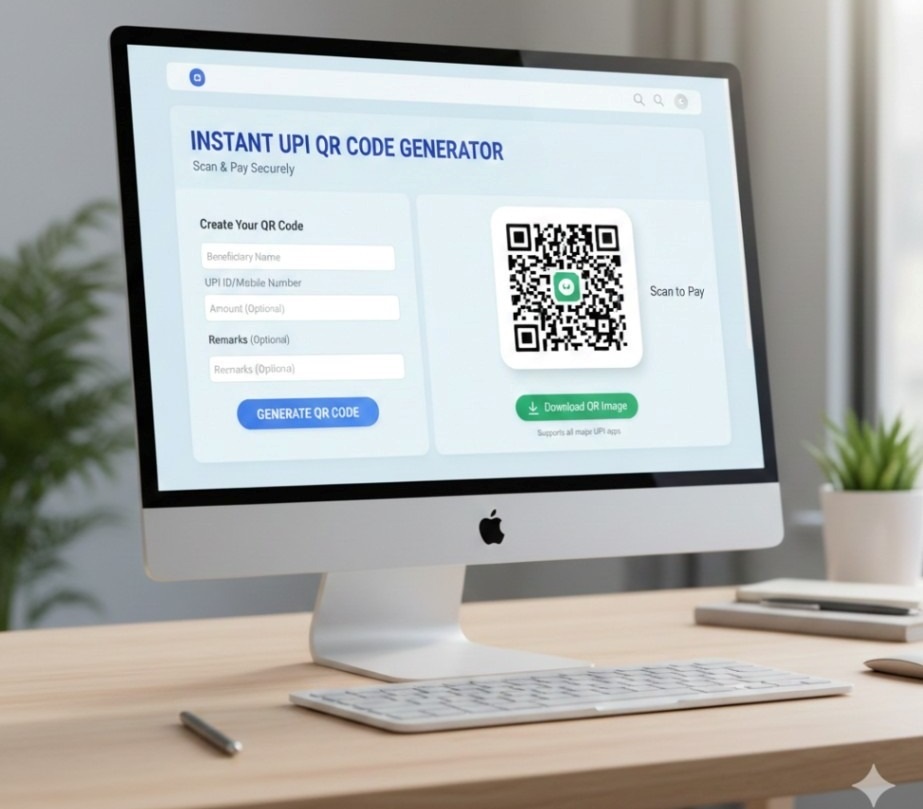
UPI Qr Code Generator


UPI QR Code Generator – Create Universal, Free & Amount-Based UPI QR Codes Online

In today’s digital India, UPI has become the backbone of online and offline payments. From small tea stalls to big shopping malls, everyone is accepting UPI payments using QR codes. If you are running a business, a website, or even collecting personal payments, you need a reliable UPI QR Code Generator.

This article explains everything about:
✔ Universal UPI QR Code Generator
✔ Free UPI QR Code Generator
✔ UPI QR Code Generator with Amount
✔ How UPI QR works
✔ How to generate a payment QR
✔ SEO & business use of UPI QR

This guide is written in a human-friendly way and optimized to bring organic traffic from Google.


What is a UPI QR Code?

A UPI QR Code is a special barcode that contains your UPI ID (like name@bank) along with payment details. When someone scans this QR using any UPI app such as Google Pay, PhonePe, Paytm, BHIM, Amazon Pay or any banking app, it automatically opens the payment screen with your UPI ID filled in.

The user just enters the amount (or it is already filled) and clicks Pay.

This makes payments:

  • Fast

  • Contactless

  • Secure

  • Error-free


What is a UPI QR Code Generator?

A UPI QR Code Generator is an online tool that allows you to create a QR code for your UPI ID. You can generate:

  • A simple QR (just UPI ID)

  • A QR with amount

  • A merchant QR

  • A universal QR

A Free UPI QR Code Generator helps anyone create a payment QR without any app or registration.


What is a Universal UPI QR Code Generator?

A Universal UPI QR Code Generator creates a QR that works with ALL UPI apps, including:

  • Google Pay

  • PhonePe

  • Paytm

  • BHIM

  • Amazon Pay

  • All Bank UPI apps

It uses the standard NPCI UPI format so any app can scan and pay.

That means:
One QR = All UPI apps

This is extremely important for shop owners and websites.


What is UPI QR Code Generator with Amount?

A UPI QR Code Generator with Amount allows you to generate a QR where the payment amount is already fixed.

Example:
You want to receive ₹500
You generate a QR with ₹500 embedded
Customer scans and sees ₹500 already filled
They just click Pay

This is perfect for:

  • Product selling

  • Online services

  • School fees

  • Recharge

  • Subscription

  • Donation


Why Use a Free UPI QR Code Generator?

A Free UPI QR Code Generator saves money and time. You do not need:

  • Any app

  • Any bank software

  • Any registration

  • Any KYC

You just:

  1. Enter UPI ID

  2. Enter name

  3. Enter amount (optional)

  4. Click Generate

  5. Download QR

This is useful for:

  • Small businesses

  • Freelancers

  • Bloggers

  • YouTubers

  • NGOs

  • Students


How Does a UPI QR Code Work?

UPI QR works using the UPI deep link format:

upi://pay?pa=upiid@bank&pn=Name&am=100&cu=INR

This link is converted into a QR code.
When scanned, it opens the UPI app with all details pre-filled.

That is how a UPI QR Code Generator works.


How to Create a UPI QR Code Online (Step by Step)

Using a Universal Free UPI QR Code Generator, follow these steps:

Step 1

Enter your UPI ID
Example:
santosh@upi

Step 2

Enter Payee Name
Example:
Santosh Sharma

Step 3

Enter Amount (Optional)
Example:
250

Step 4

Click Generate QR

Step 5

Download the QR image and share it


Benefits of Using UPI QR Code

1. 100% Cashless

No need for cash, card, or POS machine.

2. No Wrong Payments

UPI ID is already embedded in QR.

3. Instant Money

Money reaches your bank instantly.

4. No Extra Charges

UPI is free.

5. Works on All Phones

Android and iPhone both supported.


UPI QR Code for Business

A UPI QR Code Generator is extremely powerful for business.

You can use it for:

  • Shop payments

  • Online orders

  • WhatsApp orders

  • Website checkout

  • Delivery payments

You can even print the QR and put it on:

  • Counter

  • Bill

  • Invoice

  • Website


UPI QR Code for Website

If you own a website (like you do for electronics and MLM), you can place UPI QR on:

  • Payment page

  • Donation page

  • Checkout page

  • Subscription page

This increases:

  • Conversion

  • Trust

  • Payment success


UPI QR Code with Fixed Amount Use Cases

UseExample
Recharge₹199
Course Fee₹999
Donation₹100
Membership₹499
Product₹299

A UPI QR Code Generator with Amount makes checkout faster.


Is UPI QR Safe?

Yes, UPI QR codes are completely safe because:

  • No bank details shared

  • Only UPI ID is visible

  • You cannot be charged without approving

Always use:

  • Official UPI apps

  • Trusted QR generator


Difference Between Static & Dynamic QR

TypeStatic QRDynamic QR
AmountNot fixedFixed
UseShop counterOnline selling
GeneratorFreeAdvanced

A UPI QR Code Generator with Amount creates Dynamic QR.


UPI QR for Freelancers & Online Sellers

If you do:

  • Graphic design

  • Web development

  • SEO services

  • MLM business

  • Affiliate marketing

You can send your UPI QR to clients for instant payment.


UPI QR for Students & Teachers

Teachers can use:

  • Fee collection

  • Online classes

  • Notes selling

Students can:

  • Receive project payments

  • Pocket money


Why UPI QR Codes are Better Than Bank Details

UPI QR:
✔ No typing
✔ No IFSC
✔ No mistakes
✔ Faster payment


Benefits for a UPI QR Generator Website

Free UPI QR Code Generator people search:

  • free upi qr code generator

  • upi qr code generator with amount

  • create upi qr

  • payment qr generator

  • universal upi qr

This niche has:

  • High demand

  • Low competition

  • High conversion

  • Add:
  • FAQ

  • How to use

  • Tool

  • Mobile friendly design


Future of UPI QR in India

India is moving toward:

  • Cashless economy

  • Digital payments

  • QR based shopping

UPI QR is becoming more popular than cards and wallets.

Universal UPI QR Code Generator

A Universal UPI QR Code Generator is a powerful online tool that allows users to create a single QR code that works with all UPI apps such as Google Pay, PhonePe, Paytm, BHIM, Amazon Pay, and all bank UPI apps. With this QR code, anyone can make payments easily by scanning it using their preferred UPI application.

This type of QR code follows the official NPCI UPI standard, which means it is compatible across all UPI platforms. Whether you are a shop owner, freelancer, online seller, or individual, a universal UPI QR makes receiving money faster and more secure. You don’t need to share your bank details or type your UPI ID again and again — the QR code already contains all the payment information.

Using a free universal UPI QR code generator, you can simply enter your UPI ID, your name, and optionally a fixed amount. The tool will instantly generate a scannable QR code that you can download, print, or share online. This makes digital payments easy, safe, and error-free for everyone.

Free UPI QR Code Generator

A Free UPI QR Code Generator is an online tool that helps you create a QR code for receiving payments through UPI. It allows anyone to generate a payment QR without installing any app, without registration, and without paying any charges. This makes it perfect for small businesses, freelancers, shopkeepers, students, and anyone who wants to receive digital payments easily.

Using a free UPI QR code generator, you only need to enter your UPI ID and your name. You can also add a fixed amount if you want customers to pay a specific value. Once you click the generate button, the tool creates a QR code that can be scanned by any UPI app such as Google Pay, PhonePe, Paytm, BHIM, Amazon Pay, or any bank’s UPI app. This is why it is also called a universal UPI QR code.

The biggest advantage of using a free UPI QR generator is convenience. You don’t have to type long UPI IDs or bank details. Just show the QR code, and the customer can scan and pay within seconds. It reduces payment errors and makes the transaction process faster and more professional.

A free UPI QR code can be used for shop payments, online orders, tuition fees, donations, service charges, or personal transfers. You can print it, share it on WhatsApp, or place it on your website. With digital payments growing rapidly in India, a free UPI QR code generator is one of the easiest and smartest ways to accept money safely and instantly.


Conclusion

A UPI QR Code Generator is one of the most powerful tools in today’s digital payment system. Whether you are a shopkeeper, online seller, student, teacher, or website owner, using a Universal Free UPI QR Code Generator with Amount can increase your payments, reduce errors, and improve customer experience.

UPI QR is the future of India’s payments.
And having your own QR is the smartest move.

Visiting Card Background

CSC+Designer_print_aWEV0q3Xnm (1)

Dhanteras | Happy Dhanteras | Dhanteras Rangoli

धनतेरस: समृद्धि का पर्व – 3000 शब्दों में विस्तृत जानकारी


1. धनतेरस का पौराणिक महत्व


2. भगवान धन्वंतरि और आयुर्वेद का महत्व


3. देवी लक्ष्मी और कुबेर की पूजा


4. धनतेरस की तैयारी: घर की सफाई और सजावट


5. धनतेरस पर खरीदारी की परंपरा


6. सोना और चाँदी की खरीदारी: शुभ संकेत


7. बर्तन खरीदने का महत्व


8. स्वास्थ्य के प्रति जागरूकता


9. यमदीपदान की परंपरा


10. धनतेरस और व्यवसाय


11. दीपक जलाने का महत्व


12. धनतेरस का आध्यात्मिक संदेश


समापन:

CSC+Designer_print_aWEV0q3Xnm

Captions For Diwali Post | Diwali Post Kaise Banayen | Diwali Post

CSC+Designer_print_ofw8HLiuIh (2)

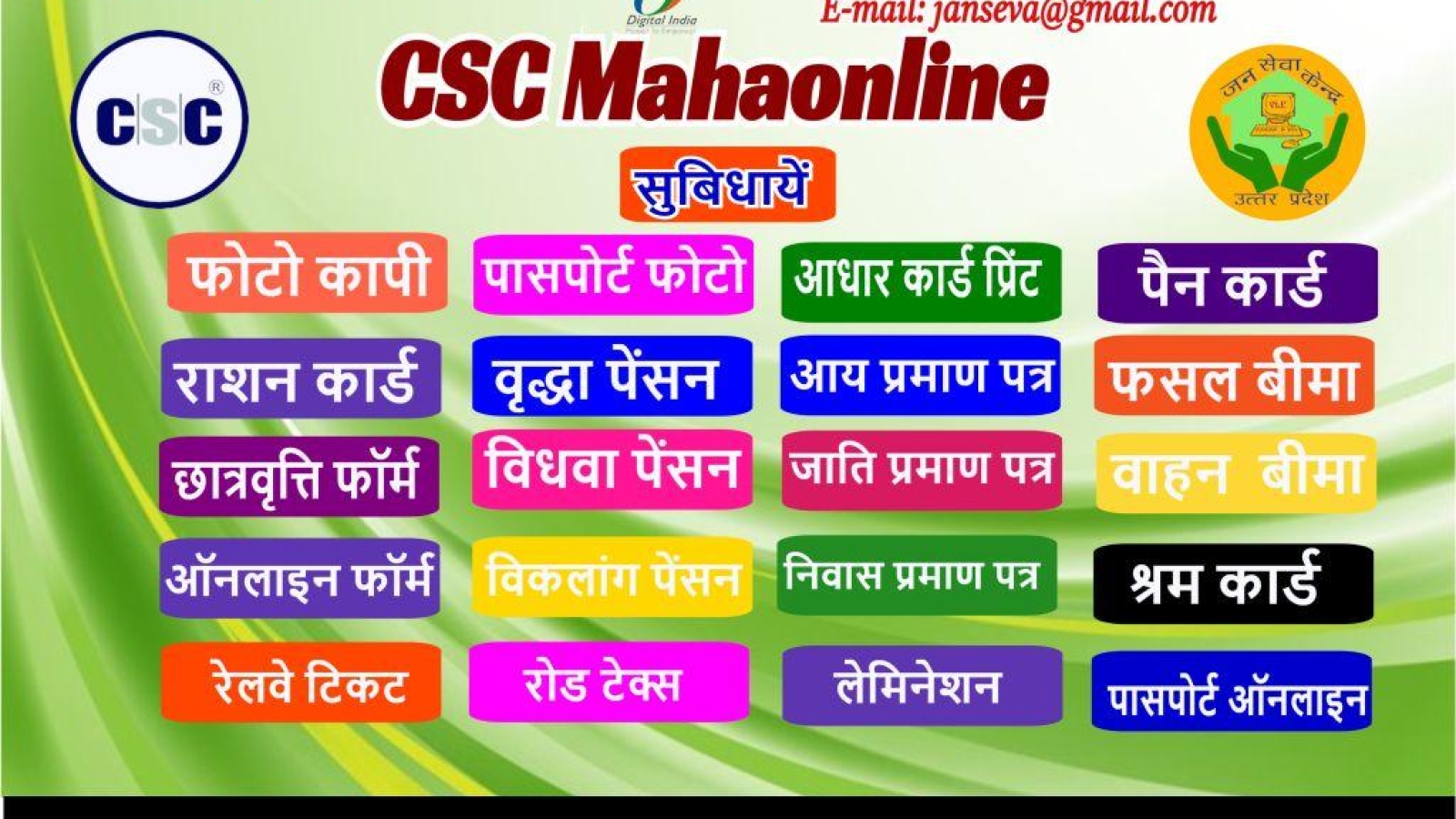
CSC Mahaonline Service in Maharashtra

परिचय


CSC क्या है?

CSC की प्रमुख सेवाएं:

  1. आधार नामांकन और अपडेट
  2. पैन कार्ड आवेदन
  3. बैंकिंग और बीमा सेवाएं
  4. सरकारी योजनाओं के लिए आवेदन
  5. ऑनलाइन शिक्षा और कौशल विकास कार्यक्रम
  6. बिल भुगतान और मोबाइल रिचार्ज सेवाएं
  7. टेलीमेडिसिन सेवाएं
  8. कृषि से जुड़ी सेवाएं

MahaOnline महाराष्ट्र सरकार और TCS (टाटा कंसल्टेंसी सर्विसेज) का संयुक्त उपक्रम है। इसका उद्देश्य राज्य के नागरिकों को डिजिटल रूप से सेवाएं प्रदान करना है। MahaOnline एक ऐसा मंच है, जो सरकारी सेवाओं को ऑनलाइन रूप से प्रदान करने के लिए बनाया गया है, ताकि लोगों को समय पर सेवाएं प्राप्त हो सकें। इसके साथ ही यह सरकारी प्रक्रियाओं को पारदर्शी और कुशल बनाने में मदद करता है।

MahaOnline की प्रमुख सेवाएं:

  1. सरकारी प्रमाण पत्र (जन्म, मृत्यु, जाति, आय आदि)
  2. विभिन्न योजनाओं के लिए आवेदन
  3. कृषि सेवाएं
  4. शिक्षा से संबंधित सेवाएं
  5. सामाजिक सुरक्षा योजनाएं
  6. व्यवसायिक लाइसेंस और परमिट

CSC MahaOnline: एक संपूर्ण सेवा मंच

CSC MahaOnline की सेवाएं

1. सरकारी प्रमाण पत्र

  • जन्म प्रमाणपत्र: बच्चे का जन्म होने के बाद नागरिक इस सेवा का उपयोग कर जन्म प्रमाणपत्र प्राप्त कर सकते हैं।
  • मृत्यु प्रमाणपत्र: परिवार में किसी की मृत्यु होने पर नागरिक यहाँ से मृत्यु प्रमाणपत्र प्राप्त कर सकते हैं।
  • जाति प्रमाणपत्र: इस प्रमाणपत्र के माध्यम से लोग अपनी जाति का प्रमाण प्राप्त कर सकते हैं, जो सरकारी योजनाओं में उपयोगी होता है।
  • आय प्रमाणपत्र: आय प्रमाणपत्र प्राप्त कर नागरिक विभिन्न सरकारी योजनाओं का लाभ उठा सकते हैं।

2. आधार सेवाएं

3. बैंकिंग और वित्तीय सेवाएं

CSC MahaOnline के जरिए लोग जनधन योजना, प्रधानमंत्री जीवन ज्योति बीमा योजना, प्रधानमंत्री सुरक्षा बीमा योजना और अटल पेंशन योजना जैसी योजनाओं का लाभ उठा सकते हैं। इसके साथ ही, CSC केंद्रों पर ग्रामीण बैंकिंग सेवाएं भी उपलब्ध होती हैं, जिससे धन हस्तांतरण और बैंकिंग से जुड़ी अन्य सेवाओं का लाभ उठाया जा सकता है।

4. डिजिटल शिक्षा और कौशल विकास

5. कृषि सेवाएं

6. सामाजिक सुरक्षा योजनाएं

  • प्रधानमंत्री आवास योजना
  • स्वच्छ भारत मिशन
  • उज्ज्वला योजना
  • पेंशन योजनाएं

7. टेलीमेडिसिन सेवाएं

CSC MahaOnline का महत्त्व

1. ग्रामीण क्षेत्र में डिजिटल सेवाओं का विस्तार

2. सरकारी प्रक्रियाओं में पारदर्शिता

3. रोजगार के अवसर

4. सरकारी योजनाओं की जानकारी

CSC MahaOnline की चुनौतियाँ

1. डिजिटल साक्षरता की कमी

2. इंटरनेट कनेक्टिविटी

3. तकनीकी समस्याएं

CSC MahaOnline का भविष्य

निष्कर्ष

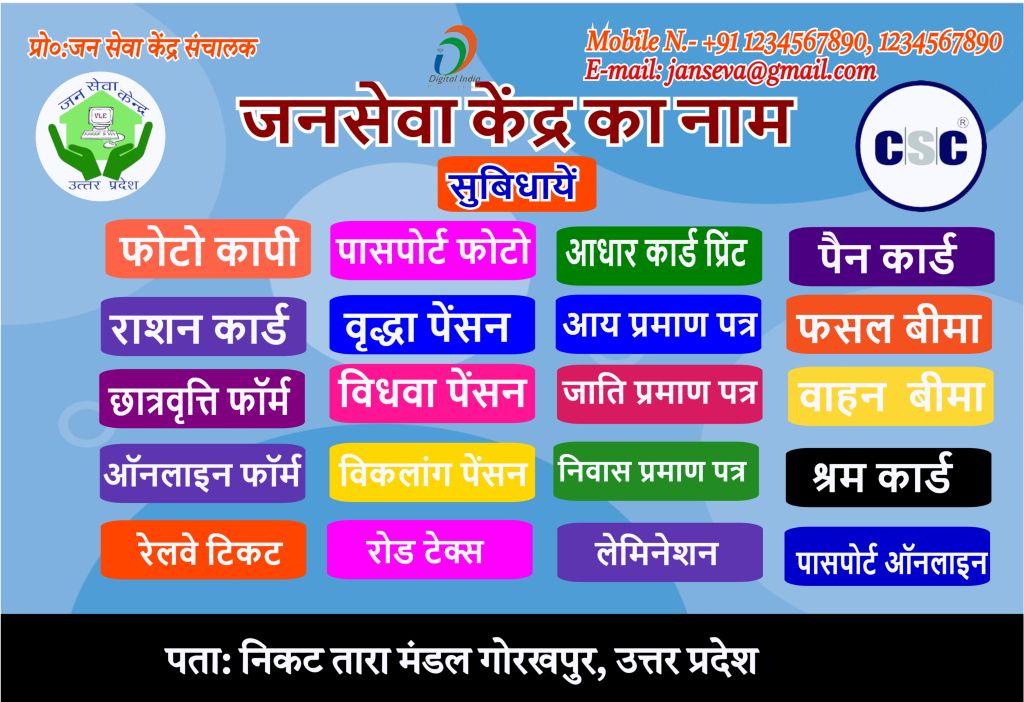
janseva-kendra-visiting-card

CSC Banner Content in Hindi

1. Title (शीर्षक):

“कॉमन सर्विस सेंटर (CSC) – डिजिटल इंडिया का प्रवेश द्वार”

2. Tagline (टैगलाइन):

“सशक्त भारत के लिए डिजिटल सेवाएं”

3. Introduction (परिचय):

कॉमन सर्विस सेंटर (CSC) भारत सरकार की एक योजना है, जिसका उद्देश्य ग्रामीण और शहरी क्षेत्रों के नागरिकों को डिजिटल माध्यम से सेवाएं प्रदान करना है। CSC के माध्यम से लोग विभिन्न सरकारी और निजी सेवाओं का लाभ उठा सकते हैं।

4. Key Services (प्रमुख सेवाएं):

  1. बैंकिंग सेवाएं (Banking Services):
    • धन हस्तांतरण
    • जनधन खाते
    • प्रधानमंत्री सुरक्षा बीमा योजना (PMSBY)
    • प्रधानमंत्री जीवन ज्योति बीमा योजना (PMJJBY)
  2. आधार सेवाएं (Aadhaar Services):
    • आधार नामांकन
    • आधार अपडेट
    • आधार प्रमाणीकरण सेवाएं
  3. शिक्षा और कौशल विकास (Education and Skill Development):
    • प्रधानमंत्री डिजिटल साक्षरता अभियान
    • ऑनलाइन प्रमाणपत्र और डिप्लोमा कोर्स
  4. स्वास्थ्य सेवाएं (Health Services):
    • टेलीमेडिसिन
    • आयुष्मान भारत योजना
    • स्वास्थ्य बीमा सेवाएं
  5. कृषि सेवाएं (Agriculture Services):
    • मृदा परीक्षण (Soil Testing)
    • फसल बीमा (Crop Insurance)
    • कृषि संबंधित जानकारी
  6. पेंशन और सामाजिक सुरक्षा (Pension and Social Security Services):
    • अटल पेंशन योजना (APY)
    • राष्ट्रीय वृद्धावस्था पेंशन योजना
  7. डिजिटल सेवाएं (Digital Services):
    • पैन कार्ड आवेदन
    • पासपोर्ट आवेदन
    • मोबाइल रिचार्ज
    • बिल भुगतान
  8. ई-गवर्नेंस सेवाएं (e-Governance Services):
    • जन्म और मृत्यु प्रमाणपत्र
    • ऑनलाइन मतदाता पहचान पत्र आवेदन
    • आय, जाति और निवास प्रमाण पत्र

5. Impact (प्रभाव):

CSC ने भारत के लाखों लोगों को डिजिटल सेवाओं तक पहुंच दिलाई है, जो पहले इन सुविधाओं से वंचित थे। यह योजना ग्रामीण क्षेत्रों में इंटरनेट की पहुंच बढ़ाने और नागरिकों को सरकारी योजनाओं का लाभ उठाने में सहायक साबित हो रही है।

6. Call to Action (कॉल टू एक्शन):

“आपके नजदीकी CSC केंद्र पर आइए और डिजिटल सेवाओं का लाभ उठाएं!”

7. Contact Information (संपर्क जानकारी):

  • CSC हेल्पलाइन: 1800-121-3468
  • CSC वेबसाइट: www.csc.gov.in

8. Visual Elements (दृश्य सामग्री):

  • CSC लोगो (Logo) – ऊपर कोने में
  • भारत का नक्शा – CSC केंद्रों को दर्शाने के लिए
  • प्रमुख सेवाओं के प्रतीक चिन्ह जैसे आधार कार्ड, बैंकिंग सेवाओं के प्रतीक
  • CSC में सेवाएं लेते हुए नागरिकों की छवियां

Extended 2500-word Detailed Content in Hindi

1. CSC का महत्व (Importance of CSC):

कॉमन सर्विस सेंटर (CSC) भारत सरकार द्वारा शुरू की गई एक ऐसी योजना है, जिसका उद्देश्य ग्रामीण और दूरदराज के क्षेत्रों में नागरिकों तक महत्वपूर्ण सेवाओं को पहुँचाना है। भारत में डिजिटल क्रांति के तहत CSC केंद्र एक महत्वपूर्ण भूमिका निभा रहे हैं। ये केंद्र न केवल सरकारी सेवाओं तक पहुंच प्रदान करते हैं, बल्कि निजी सेवाओं को भी नागरिकों तक डिजिटल माध्यम से पहुँचाते हैं। यह एक ऐसा मंच है जो तकनीकी और मानव संसाधनों का उपयोग करके देश के हर कोने में सेवाएं पहुँचाने का काम करता है।

2. CSC की सेवाएं (Services of CSC):

CSC केंद्रों में विभिन्न प्रकार की सेवाएं प्रदान की जाती हैं, जिनमें सरकारी, गैर-सरकारी और निजी सेवाएं शामिल हैं। नीचे CSC के द्वारा दी जाने वाली प्रमुख सेवाओं का विस्तृत विवरण दिया गया है:

  1. बैंकिंग और वित्तीय सेवाएं (Banking and Financial Services): CSC केंद्रों के माध्यम से नागरिक बैंकिंग सेवाओं का लाभ ले सकते हैं। विशेष रूप से, वे लोग जो बैंकों की शाखाओं से दूर रहते हैं या जिनके पास बैंकिंग सेवाओं की पहुँच नहीं है, उनके लिए CSC एक वरदान साबित हो रहे हैं।
    • जनधन योजना: CSC केंद्रों के माध्यम से जनधन खाते खोले जाते हैं, जिससे लोग बैंकों की सेवाओं से जुड़ते हैं।
    • बीमा सेवाएं: CSC के माध्यम से प्रधानमंत्री सुरक्षा बीमा योजना (PMSBY) और प्रधानमंत्री जीवन ज्योति बीमा योजना (PMJJBY) के तहत बीमा पॉलिसी ली जा सकती हैं।
    • धन हस्तांतरण: ग्रामीण क्षेत्रों के लोगों को धन हस्तांतरण की सुविधा भी CSC केंद्र प्रदान करते हैं, जिससे वे आसानी से पैसे भेज और प्राप्त कर सकते हैं।
  2. आधार सेवाएं (Aadhaar Services): CSC केंद्र आधार कार्ड से संबंधित सेवाएं भी प्रदान करते हैं। लोग यहाँ अपने आधार कार्ड के लिए आवेदन कर सकते हैं, आधार में सुधार करवा सकते हैं, और आधार प्रमाणीकरण भी करवा सकते हैं। यह सुविधा दूरस्थ और ग्रामीण क्षेत्रों में बहुत ही उपयोगी है, जहाँ आधार सेवाओं की पहुँच पहले कम थी।
  3. शिक्षा और कौशल विकास (Education and Skill Development Services): CSC के तहत प्रधानमंत्री डिजिटल साक्षरता अभियान के अंतर्गत ग्रामीण और शहरी नागरिकों को डिजिटल शिक्षा प्रदान की जाती है। इसके साथ ही, CSC केंद्रों पर कई प्रकार के ऑनलाइन कोर्स और प्रमाणपत्र कार्यक्रम भी उपलब्ध होते हैं, जिनसे लोग अपने कौशल को बढ़ा सकते हैं।
  4. स्वास्थ्य सेवाएं (Health Services): CSC के माध्यम से स्वास्थ्य सेवाएं भी प्रदान की जाती हैं, जिसमें टेलीमेडिसिन सेवाएं मुख्य रूप से शामिल हैं। लोग CSC के माध्यम से डॉक्टरों से ऑनलाइन परामर्श ले सकते हैं। इसके अलावा, CSC केंद्रों पर आयुष्मान भारत योजना के तहत स्वास्थ्य बीमा सेवाएं भी उपलब्ध होती हैं, जिससे लोग कम कीमत पर स्वास्थ्य सेवाओं का लाभ उठा सकते हैं।
  5. कृषि सेवाएं (Agriculture Services): CSC केंद्र किसानों के लिए कृषि संबंधी जानकारी और सेवाएं भी उपलब्ध कराते हैं। यहाँ मृदा परीक्षण (Soil Testing) किया जाता है, जिससे किसान अपनी फसल की पैदावार को बेहतर बना सकते हैं। इसके अलावा, फसल बीमा (Crop Insurance) की सुविधाएं भी प्रदान की जाती हैं।
  6. डिजिटल सेवाएं (Digital Services): CSC केंद्रों पर पैन कार्ड और पासपोर्ट के लिए आवेदन किया जा सकता है। इसके अलावा, यहाँ मोबाइल रिचार्ज, डीटीएच रिचार्ज और बिजली-पानी के बिलों का भुगतान भी किया जा सकता है।

3. CSC के लाभ (Benefits of CSC):

4. CSC का भविष्य (Future of CSC):

1. बैनर के लिए सॉफ्टवेयर या टूल चुनें:

  • Adobe Photoshop: पेशेवर ग्राफिक्स डिज़ाइनिंग के लिए एक बेहतरीन टूल।
  • Canva: शुरुआती और आसानी से इस्तेमाल करने वाले लोगों के लिए मुफ़्त और सुलभ ऑनलाइन टूल।
  • CorelDRAW: वेक्टर-आधारित डिज़ाइनिंग के लिए अच्छा टूल।

2. सही आकार और फ़ॉर्मेट चुनें:

  • आमतौर पर बैनर के लिए साइज 4 फीट x 6 फीट या 3 फीट x 5 फीट का इस्तेमाल किया जाता है।
  • आप उच्च गुणवत्ता वाले PNG, JPEG, या PDF फ़ॉर्मेट का उपयोग कर सकते हैं ताकि प्रिंटिंग के समय गुणवत्ता अच्छी रहे।

3. बैनर का प्रमुख शीर्षक (Main Heading):

बैनर पर प्रमुख रूप से “कॉमन सर्विस सेंटर (CSC)” को बड़ा और बोल्ड फॉन्ट में लिखें। इसके नीचे एक टैगलाइन जोड़ें, जैसे:

  • “डिजिटल इंडिया का प्रवेश द्वार” यह आपके बैनर का सबसे प्रमुख भाग होगा, इसलिए इसे साफ़ और स्पष्ट रूप से प्रस्तुत करें।

4. रंग योजना (Color Scheme):

बैनर में इस्तेमाल होने वाले रंगों का चयन ध्यानपूर्वक करें। CSC Banner के लिए भारत के राष्ट्रीय ध्वज के रंग (केसरिया, सफ़ेद, हरा) और CSC का आधिकारिक रंग नीला (Blue) प्रयोग करें।

  • पृष्ठभूमि हल्की होनी चाहिए ताकि टेक्स्ट स्पष्ट दिखाई दे।
  • फॉन्ट का रंग गहरे रंग का रखें, जैसे नीला या काला।

5. चित्र और आइकन (Images and Icons):

बैनर में चित्रों और आइकन का सही उपयोग करें:

  • CSC का लोगो: सबसे ऊपर या बाएं कोने में लगाएं।
  • सेवाओं के आइकन: जैसे आधार, बैंकिंग, बीमा, और शिक्षा जैसी सेवाओं के छोटे-छोटे आइकन।
  • ग्रामीण नागरिकों और डिजिटल उपकरणों का उपयोग करते हुए चित्र दिखाएं।

6. सेवाओं की जानकारी (Information About Services):

बैनर पर CSC द्वारा प्रदान की जाने वाली प्रमुख सेवाओं की सूची दें। इसे बुलेट पॉइंट्स के रूप में लिखें, जैसे:

  • आधार नामांकन और सुधार
  • बैंकिंग और बीमा सेवाएं
  • शिक्षा और कौशल विकास
  • डिजिटल सेवाएं जैसे पैन कार्ड, पासपोर्ट आवेदन

7. कॉल टू एक्शन (Call to Action):

बैनर पर एक कॉल टू एक्शन जोड़ें जिससे लोग जानें कि उन्हें क्या करना है। उदाहरण के लिए:

  • “अपने नजदीकी CSC केंद्र पर आइए और डिजिटल सेवाओं का लाभ उठाएं!”

8. संपर्क जानकारी (Contact Information):

बैनर के निचले हिस्से में CSC केंद्र का पता, फोन नंबर और वेबसाइट जानकारी डालें ताकि लोग आपसे संपर्क कर सकें।

  • CSC हेल्पलाइन: 1800-121-3468
  • CSC वेबसाइट: www.csc.gov.in

9. फॉन्ट चयन (Font Selection):

हिंदी और अंग्रेज़ी दोनों में साफ़ और पढ़ने योग्य फॉन्ट का चयन करें। आप ऐसे फॉन्ट्स का उपयोग कर सकते हैं जो डिजिटल और ग्रामीण दोनों विषयों को दर्शाते हों, जैसे:

  • Kruti Dev, Mangal या Arial

10. बैनर का प्रारूप (Banner Layout):

  • सबसे ऊपर मुख्य शीर्षक
  • बीच में चित्र और सेवाओं के आइकन
  • नीचे की ओर कॉल टू एक्शन और संपर्क जानकारी

बैनर बनाने का तरीका (Step-by-Step Process):

  1. सॉफ़्टवेयर खोलें और नई फ़ाइल बनाएं। साइज चुनें, उदाहरण के लिए 4 फीट x 6 फीट और 300 DPI रेज़ोल्यूशन सेट करें।
  2. पृष्ठभूमि रंग सेट करें। हल्के रंग का चयन करें, जैसे सफेद या हल्का नीला।
  3. बैनर पर शीर्षक (Title) जोड़ें। इसे सबसे ऊपर बड़ी, बोल्ड और स्पष्ट शैली में लिखें।
  4. चित्र और आइकन जोड़ें। अगर आप Canva का उपयोग कर रहे हैं, तो उसमें पहले से बने आइकन आसानी से मिल जाएंगे।
  5. टेक्स्ट को सही तरीके से संरेखित करें। जानकारी को छोटे-छोटे खंडों में बांटें ताकि पाठक आसानी से समझ सकें।
  6. फ़ॉन्ट स्टाइल और रंग समायोजित करें। फॉन्ट्स को पढ़ने में आसान और दृश्यात्मक रूप से आकर्षक बनाएं।
  7. संपर्क विवरण सबसे नीचे जोड़ें।
  8. जब बैनर तैयार हो जाए, तो उसे PNG या JPEG फॉर्मेट में सेव करें ताकि वह प्रिंटिंग के लिए तैयार हो सके।

इस तरह से आप आसानी से एक आकर्षक और जानकारीपूर्ण CSC Banner बना सकते हैं।

sahaj-jan-seva-kendra-visiting-card

CSC Visiting Card | CSC Visiting Card Design

CSC (Common Service Center) विजिटिंग कार्ड डिजाइन और जानकारी


1. CSC Visiting Card का महत्व

विजिटिंग कार्ड के मुख्य लाभ:

  • पहचान: विजिटिंग कार्ड आपकी व्यक्तिगत और व्यवसायिक पहचान का प्रतीक होता है।
  • सेवाओं की जानकारी: इसके जरिए आप अपने ग्राहक को यह बता सकते हैं कि आप कौन-कौन सी सेवाएं प्रदान करते हैं।
  • संपर्क का साधन: इसमें आपके संपर्क की जानकारी होती है, जैसे कि फोन नंबर, ईमेल, पता, जिससे ग्राहक आपसे संपर्क कर सकते हैं।
  • ब्रांडिंग: विजिटिंग कार्ड आपके ब्रांड या सेवा को प्रोफेशनल तरीके से प्रस्तुत करने का एक बेहतरीन तरीका है।

2. CSC विजिटिंग कार्ड में शामिल होने वाली महत्वपूर्ण जानकारी

1. व्यक्तिगत जानकारी:

  • नाम: सबसे पहले आपका पूरा नाम विजिटिंग कार्ड पर होना चाहिए।
  • पद: आपका पद जैसे “CSC संचालक”, “VLE (Village Level Entrepreneur)” आदि स्पष्ट रूप से लिखा होना चाहिए।

2. संपर्क जानकारी:

  • फ़ोन नंबर: अपना व्यक्तिगत या व्यावसायिक फोन नंबर शामिल करें ताकि ग्राहक आपसे आसानी से संपर्क कर सकें।
  • ईमेल पता: एक प्रोफेशनल ईमेल आईडी होना जरूरी है ताकि आपके ग्राहक और अन्य व्यावसायिक लोग आपसे ईमेल के माध्यम से संपर्क कर सकें।
  • वेबसाइट: यदि आपके पास अपनी कोई वेबसाइट है, तो उसका यूआरएल भी शामिल करें। अगर नहीं, तो आप CSC की आधिकारिक वेबसाइट का लिंक भी दे सकते हैं।

3. पता:

  • अपने CSC केंद्र का पता विजिटिंग कार्ड पर अवश्य दें। इससे आपके ग्राहक आसानी से आपके केंद्र पर पहुंच सकते हैं।

4. सेवाओं की सूची:

  • आप कौन-कौन सी सेवाएं प्रदान करते हैं, इसका एक छोटा विवरण भी कार्ड में शामिल करें। उदाहरण के लिए:
    • आधार नामांकन और संशोधन
    • पैन कार्ड सेवाएं
    • बैंकिंग सेवाएं (DigiPay, जन धन खाता)
    • पासपोर्ट सेवाएं
    • बिजली बिल भुगतान
    • बीमा सेवाएं (Life Insurance, General Insurance)
    • कृषि और श्रम संबंधित सेवाएं
    • शिक्षा और कौशल विकास से संबंधित सेवाएं

5. लोगो:

  • CSC का आधिकारिक लोगो और अगर आपके पास खुद का कोई ब्रांड है तो उसका लोगो भी विजिटिंग कार्ड में शामिल करें। इससे आपका कार्ड पेशेवर दिखेगा और ब्रांडिंग में भी मदद मिलेगी।

6. सोशल मीडिया हैंडल्स:

  • अगर आप सोशल मीडिया प्लेटफार्म्स पर सक्रिय हैं, तो उनके हैंडल्स भी विजिटिंग कार्ड में शामिल करें। इससे आपकी ऑनलाइन उपस्थिति और अधिक प्रभावी होगी।

3. CSC Visiting Card Design के टिप्स

1. सरलता और स्पष्टता

  • विजिटिंग कार्ड का डिज़ाइन सरल और साफ होना चाहिए। अत्यधिक जटिल या भरे हुए डिज़ाइन से बचें। ज्यादा टेक्स्ट और अनावश्यक जानकारी देने से आपका कार्ड भरा हुआ लग सकता है, जो देखने में प्रभावी नहीं होता।

2. प्रोफेशनल फोंट का उपयोग

  • हमेशा ऐसे फोंट का उपयोग करें जो पढ़ने में आसान हो और प्रोफेशनल दिखे। फोंट का साइज भी सही होना चाहिए ताकि कार्ड में लिखी जानकारी स्पष्ट रूप से दिखाई दे।

3. रंगों का सही संयोजन

  • विजिटिंग कार्ड में रंगों का सही संयोजन बहुत महत्वपूर्ण होता है। आप CSC के आधिकारिक रंगों (नीला और सफेद) का उपयोग कर सकते हैं। इसके अलावा, आप अपने ब्रांड के रंगों का भी ध्यान रखें ताकि कार्ड देखने में ब्रांडिंग का प्रभाव छोड़ सके।

4. लोगो की प्लेसमेंट

  • लोगो को विजिटिंग कार्ड में प्रमुख स्थान पर रखें। आप CSC लोगो को बाईं ओर या ऊपर की ओर रख सकते हैं, और उसके साथ अपना लोगो जोड़ सकते हैं। लोगो आपकी ब्रांडिंग को मजबूत करता है।

5. पर्याप्त सफेद जगह (White Space)

  • विजिटिंग कार्ड में जानकारी के बीच पर्याप्त सफेद जगह छोड़ें। इससे कार्ड पढ़ने में आसान होगा और अधिक पेशेवर दिखेगा। यह भी सुनिश्चित करें कि आपका कार्ड ज्यादा भरा हुआ न लगे।

6. एक तरफ या दोनों तरफ डिजाइन

  • आप अपने कार्ड को एक तरफा या दोनों तरफा डिज़ाइन कर सकते हैं। एक तरफ नाम और संपर्क जानकारी हो सकती है, जबकि दूसरी तरफ सेवाओं की सूची और सोशल मीडिया लिंक दिए जा सकते हैं।

7. प्रिंट क्वालिटी

  • हमेशा उच्च गुणवत्ता के पेपर और प्रिंटिंग का उपयोग करें। खराब क्वालिटी का प्रिंट आपके विजिटिंग कार्ड को सस्ता और अनप्रोफेशनल बना सकता है।

8. QR कोड का उपयोग

  • आप विजिटिंग कार्ड में QR कोड का उपयोग कर सकते हैं। इस कोड को स्कैन करने पर ग्राहक आपकी वेबसाइट या सोशल मीडिया पेज पर डायरेक्ट पहुंच सकता है। इससे डिजिटल कनेक्टिविटी में सुधार होता है।

4. CSC विजिटिंग कार्ड का प्रभावी उपयोग

एक अच्छा डिज़ाइन किया गया विजिटिंग कार्ड तभी उपयोगी होता है जब आप उसे सही तरीके से इस्तेमाल करें। यहां कुछ तरीके बताए जा रहे हैं, जिनसे आप अपने CSC विजिटिंग कार्ड का अधिकतम लाभ उठा सकते हैं:

1. संबंध बनाए रखना

  • जब भी आप किसी नई व्यावसायिक मीटिंग में जाएं या किसी नए ग्राहक से मिलें, उन्हें अपना विजिटिंग कार्ड अवश्य दें। इससे आप अपने संपर्कों का नेटवर्क बढ़ा सकते हैं।

2. स्थानीय प्रचार

  • आप अपने विजिटिंग कार्ड को स्थानीय दुकानों, कॉम्यूनिटी सेंटरों, और अन्य सार्वजनिक स्थानों पर भी रख सकते हैं, ताकि अधिक से अधिक लोग आपकी सेवाओं के बारे में जान सकें।

3. सोशल नेटवर्किंग इवेंट्स

  • किसी भी व्यापारिक या सामाजिक इवेंट में हिस्सा लेते समय अपने विजिटिंग कार्ड को साथ लेकर जाएं। इससे आपको नए संभावित ग्राहकों और साझेदारों से जुड़ने का मौका मिलेगा।

4. प्रमाणीकरण

  • आपका विजिटिंग कार्ड ग्राहकों के लिए एक भरोसेमंद प्रमाण भी हो सकता है कि आप एक प्रमाणित CSC संचालक हैं। इससे आपके ग्राहकों का विश्वास बढ़ेगा।

5. डिजिटल माध्यमों में उपयोग

  • आप अपने विजिटिंग कार्ड की डिज़ाइन को डिजिटल फॉर्मेट में भी उपयोग कर सकते हैं, जैसे कि सोशल मीडिया प्रोफाइल पिक्चर, डिजिटल सिग्नेचर, आदि।

5. विजिटिंग कार्ड को डिज़ाइन और प्रिंट करने के प्लेटफार्म्स

आजकल कई ऑनलाइन प्लेटफॉर्म्स उपलब्ध हैं, जहां आप आसानी से अपना विजिटिंग कार्ड डिज़ाइन कर सकते हैं और प्रिंट करवा सकते हैं। कुछ लोकप्रिय प्लेटफॉर्म्स हैं:

1. Canva

  • Canva एक मुफ्त डिज़ाइन टूल है जहां आप विजिटिंग कार्ड के लिए पहले से बने टेम्पलेट्स का उपयोग कर सकते हैं। इसे इस्तेमाल करना बहुत आसान है, और आप इसे कस्टमाइज़ भी कर सकते हैं।

2. Vistaprint

  • Vistaprint एक लोकप्रिय प्रिंटिंग सेवा है, जहां से आप उच्च गुणवत्ता वाले विजिटिंग कार्ड प्रिंट करवा सकते हैं। यह प्रोफेशनल डिज़ाइनिंग सर्विस भी प्रदान करता है।

3. Adobe Spark

  • Adobe Spark एक और मुफ्त डिज़ाइनिंग टूल है, जहां आप आकर्षक और पेशेवर विजिटिंग कार्ड डिज़ाइन कर सकते हैं।

4. Fiverr

  • Fiverr पर आप प्रोफेशनल ग्राफिक्स डिज़ाइनरों से अपने लिए कस्टम डिज़ाइनिंग सेवाएं प्राप्त कर सकते हैं।

निष्कर्ष

CSC विजिटिंग कार्ड आपके व्यवसाय का एक महत्वपूर्ण हिस्सा है। यह आपके ग्राहकों और साझेदारों को आपकी सेवाओं के बारे में जानकारी देता है और आपको व्यावसायिक रूप से प्रस्तुत करने में मदद करता है। एक अच्छा डिज़ाइन किया गया विजिटिंग कार्ड आपको अधिक पेशेवर और विश्वसनीय बनाता है। उम्मीद है कि इस गाइड की मदद से आप एक प्रभावी और आकर्षक विजिटिंग कार्ड बना पाएंगे, जो आपके व्यवसाय को आगे बढ़ाने में सहायक होगा।